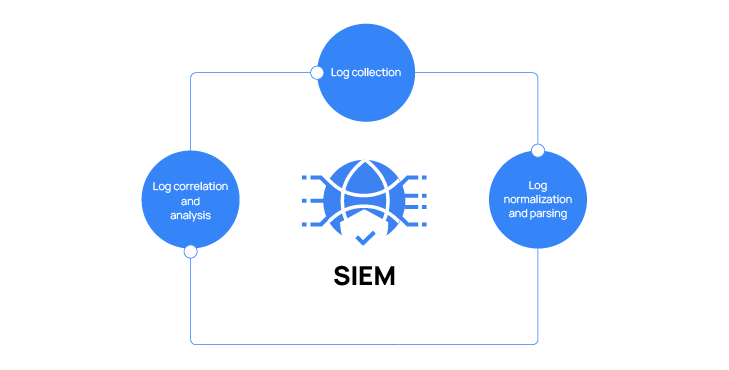
Individual security tools — Fail2Ban, UFW, Suricata, Lynis — each watch their own narrow slice of your homelab, but none of them give you a single unified view correlating events across every server at once. Setting up Wazuh as a SIEM for your home lab brings all of that together, centralizing security event logs, alerts, and file integrity monitoring from every connected machine into one dashboard.
What Is Wazuh?
Wazuh is a free, open-source security monitoring platform combining SIEM (Security Information and Event Management) and XDR (Extended Detection and Response) capabilities. It works through lightweight agents installed on each monitored machine, which forward security-relevant events — log entries, file changes, running processes — back to a central Wazuh server for analysis, correlation, and alerting.
Why Centralize Security Monitoring
Without centralized monitoring, spotting a coordinated attack pattern across multiple servers means manually checking each machine’s individual logs and hoping to notice a connection. Wazuh’s central server correlates events across every connected agent, meaning a suspicious pattern that touches multiple machines — a scan followed by a login attempt on a different server, for example — becomes visible as a single correlated alert rather than several disconnected log entries.
Wazuh Architecture
- Wazuh Manager – the central server receiving and analyzing data from all connected agents
- Wazuh Agents – lightweight software installed on each monitored machine, forwarding logs and security events to the manager
- Wazuh Indexer – stores and indexes the collected data for searching (built on OpenSearch)
- Wazuh Dashboard – the web interface for viewing alerts, searching events, and managing agents
Installing the Wazuh Server
The most common homelab deployment installs the full Wazuh stack (manager, indexer, dashboard) using their official all-in-one installation script on a dedicated VM:
curl -sO https://packages.wazuh.com/4.x/wazuh-install.sh
sudo bash wazuh-install.sh -a
This installs all components and generates initial admin credentials for the dashboard, displayed at the end of the installation process.
Accessing the Dashboard
Once installed, access the Wazuh dashboard at:
https://your-server-ipLog in using the credentials generated during installation, then change the default password immediately for security.
Installing Agents on Monitored Servers
On each machine you want monitored, install the Wazuh agent, configuring it to report to your central manager’s IP address:
curl -o wazuh-agent.deb https://packages.wazuh.com/4.x/apt/pool/main/w/wazuh-agent/wazuh-agent_4.x_amd64.deb
sudo WAZUH_MANAGER='your-manager-ip' dpkg -i wazuh-agent.deb
sudo systemctl enable --now wazuh-agent
What Wazuh Monitors by Default
- Log analysis – correlating events from system logs, authentication attempts, and application-specific logs
- File integrity monitoring (FIM) – alerting when monitored files or directories change unexpectedly, useful for detecting tampering
- Rootkit and malware detection – periodic scans checking for known indicators of compromise
- Vulnerability detection – comparing installed software versions against known vulnerability databases
Integrating with Existing Security Tools
Wazuh can ingest logs from tools you’re likely already running — Suricata’s alert logs, Fail2Ban’s ban events, and UFW’s firewall logs can all be forwarded into Wazuh, giving you one place to review activity that previously required checking each tool’s own separate log files individually.
Reviewing and Responding to Alerts
The Wazuh dashboard categorizes alerts by severity level, letting you filter for high-priority events first rather than wading through low-severity informational entries. Set up notification integrations (email, Slack) for critical-severity alerts specifically, so you’re immediately aware of genuinely serious findings without needing to actively check the dashboard constantly.
Resource Considerations
Running the full Wazuh stack — particularly the OpenSearch-based indexer — requires significantly more resources than lighter tools covered elsewhere in this series, generally recommending at least 4GB of dedicated RAM for a small homelab deployment. Plan for a dedicated VM with adequate resources rather than trying to squeeze it onto an already busy shared host.
Final Thoughts
Setting up Wazuh as a SIEM for your home lab brings real enterprise-grade security visibility to a homelab setup, correlating events across every connected machine into a single dashboard rather than checking each security tool’s logs separately. For homelab users who’ve already implemented firewall rules, Fail2Ban, and intrusion detection individually, Wazuh ties everything together into one coherent, centralized view of your overall security posture.
Leave a Reply